
The board
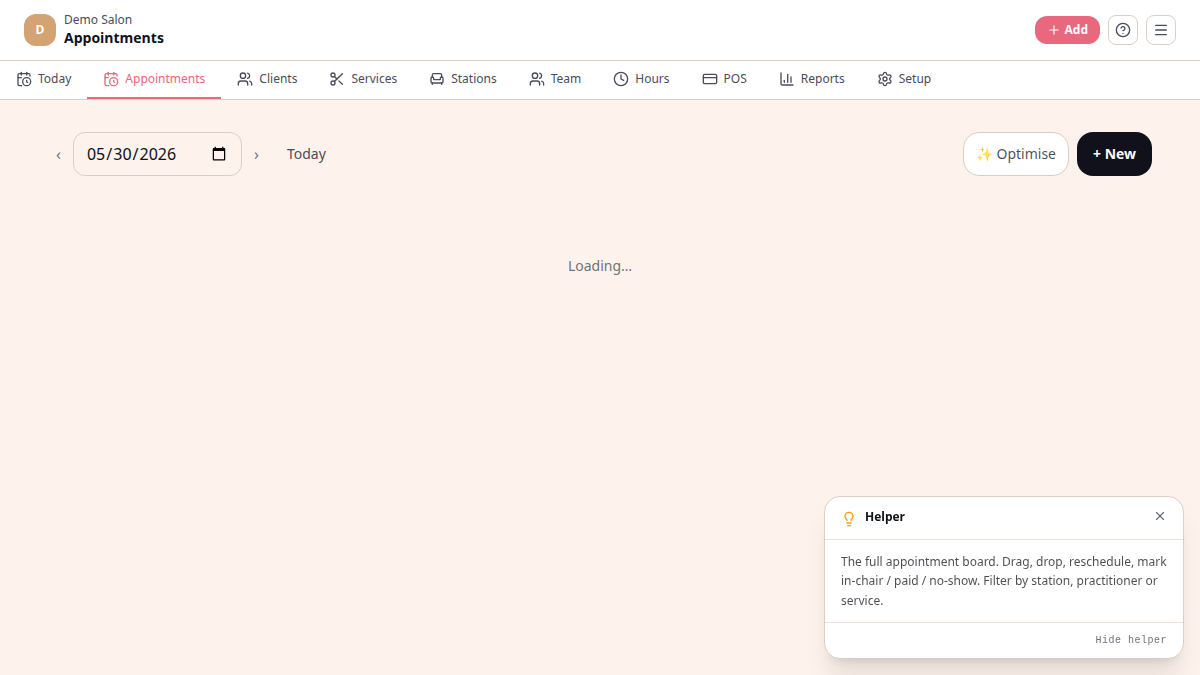
The board at /platform/board is how you run the day. Time flows
left → right across the screen. Each row is one practitioner (Staff view)
or one station (Resources view). Every appointment is a card you can tap to
open and edit.
Staff vs Resources
Section titled “Staff vs Resources”There is a toggle at the top-left of the board:
- Staff — one row per practitioner. You see who is busy and who has gaps.
- Resources — one row per station (chair, basin, treatment room, nail
station). Useful when a single appointment uses more than one station — a
colour service that runs
basin → chair → basin → chairshows a block in every lane it touches.
A red line tracks the current time on today’s view.
What the colours mean
Section titled “What the colours mean”The card colour comes from the client — every regular gets the same hue day to day, so you spot familiar faces at a glance. The status controls the card’s intensity and badge label:
| Status | Card | What’s happening | |---|---|---| | Pending | yellow | Booked, not yet confirmed by you | | Confirmed | blue | Booking is locked in | | Arrived | purple | Client is in the salon, waiting | | In progress | green | Practitioner has started the service | | Done | grey, faded | Service complete — ready for checkout in POS | | No-show | red, faded | Past their slot, never arrived | | Cancelled | hidden | Removed from the main view |
What you can do from the board
Section titled “What you can do from the board”- Tap a card → opens a sheet with the client, services, total, and a row of action buttons: Cancel, Edit, Mark next status, or Checkout (when Done).
- Edit lets you change time, status, practitioner, station, and notes.
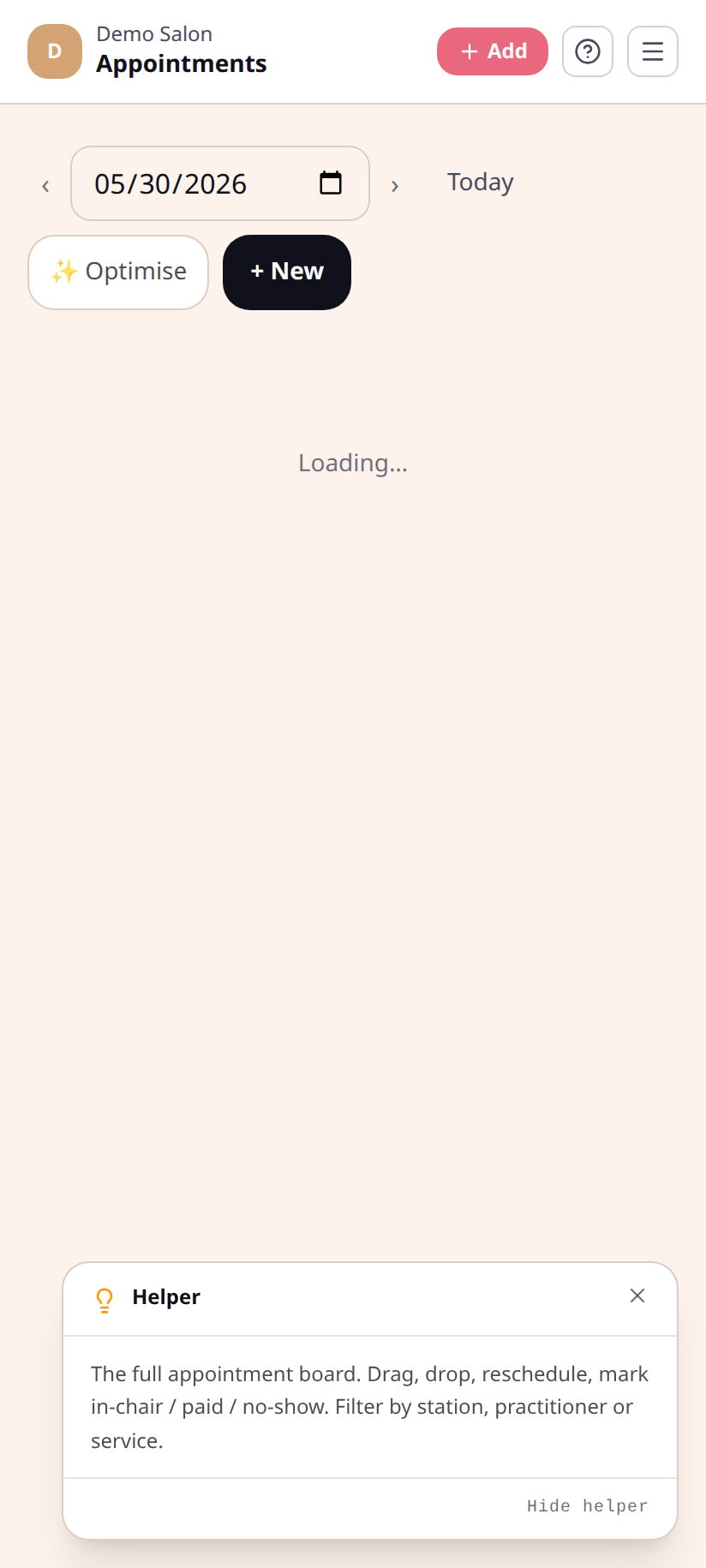
- + New (top-right) opens Quick Capture — pick a client (or leave blank for a walk-in), service, time, and the booking lands on the board.
- Date picker at the top-left moves you to any day, or tap Today.
- Optimise runs the AI Schedule Optimiser over the day’s gaps. See AI Schedule Optimiser.
On mobile
Section titled “On mobile”Same layout — the timeline scrolls horizontally inside the card. Lane labels stay sticky on the left so you always know whose row you are looking at.